

On screen joysticks and Bluetooth gamepad
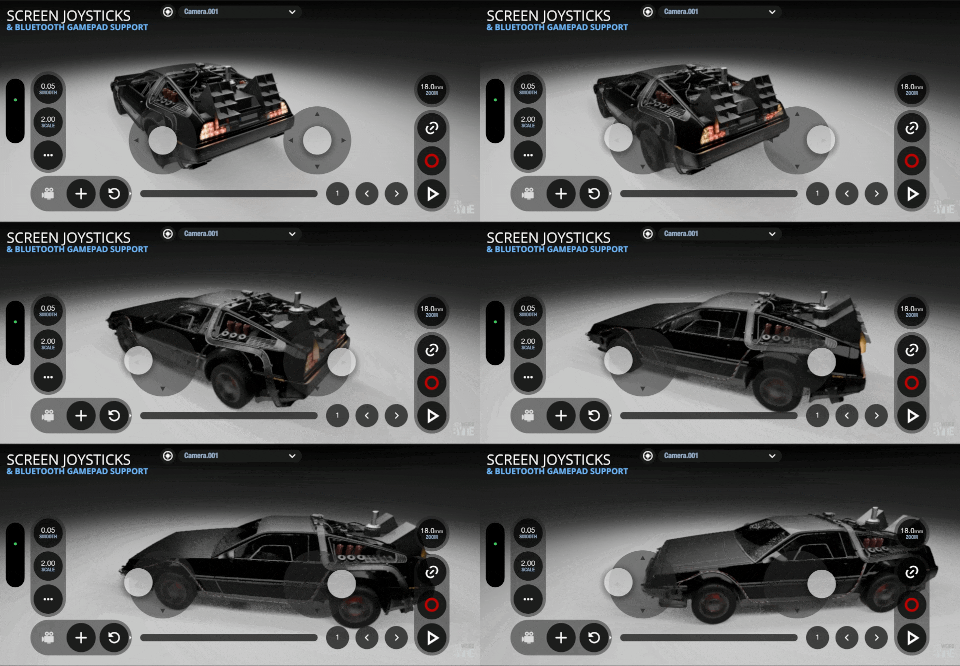
VirtuCamera provides flexible camera control using joysticks, supporting both on-screen virtual controls and external wireless controllers.
Set up the joysticks
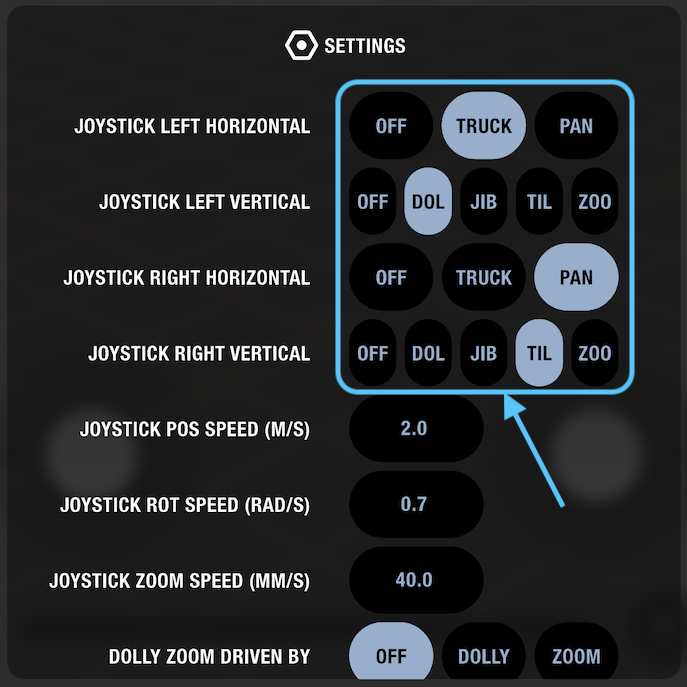
Open the settings menu to access the PTZ configuration parameters. You can assign the horizontal and vertical axes independently, choosing between truck, pan, dolly, jib, tilt, and zoom.
Adjust joystick speed
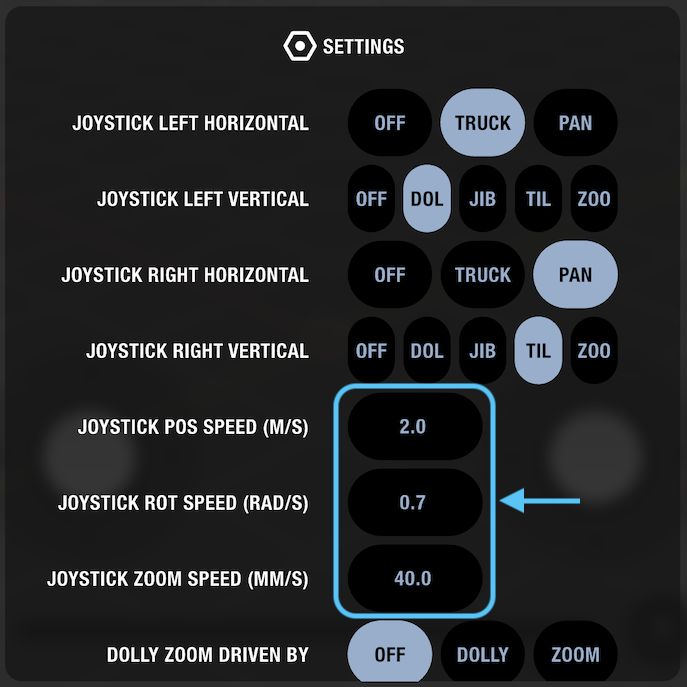
Fine-tune control responsiveness within the settings menu. These parameters allow you to adjust how fast the camera rotates, moves, and zooms.
Enable or disable joysticks
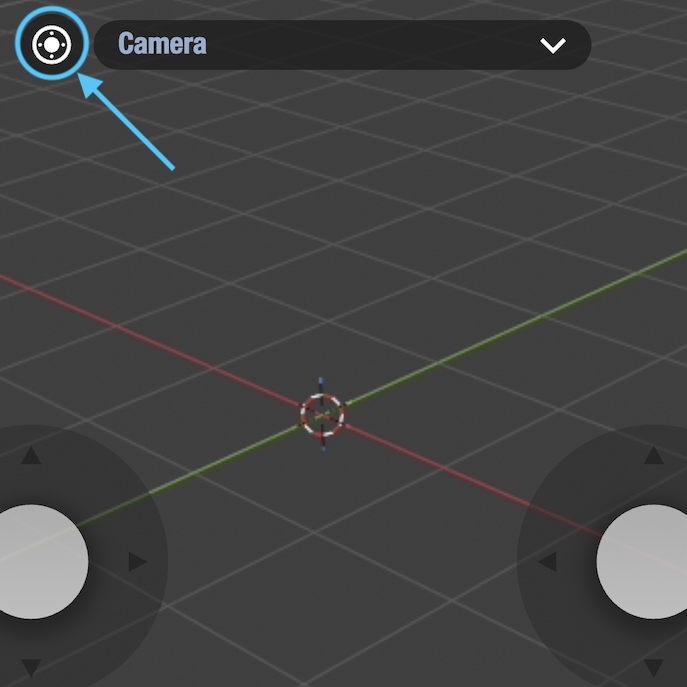
Tap the quick-access icon located beside the camera selection menu to toggle the joysticks on or off at any time.
Connect a Bluetooth gamepad
VirtuCamera supports external Bluetooth controllers, such as Xbox and PlayStation gamepads, provided they are compatible with your mobile operating system. Once connected, the gamepad thumbsticks adopt the same motion and speed settings configured for the on-screen joysticks.
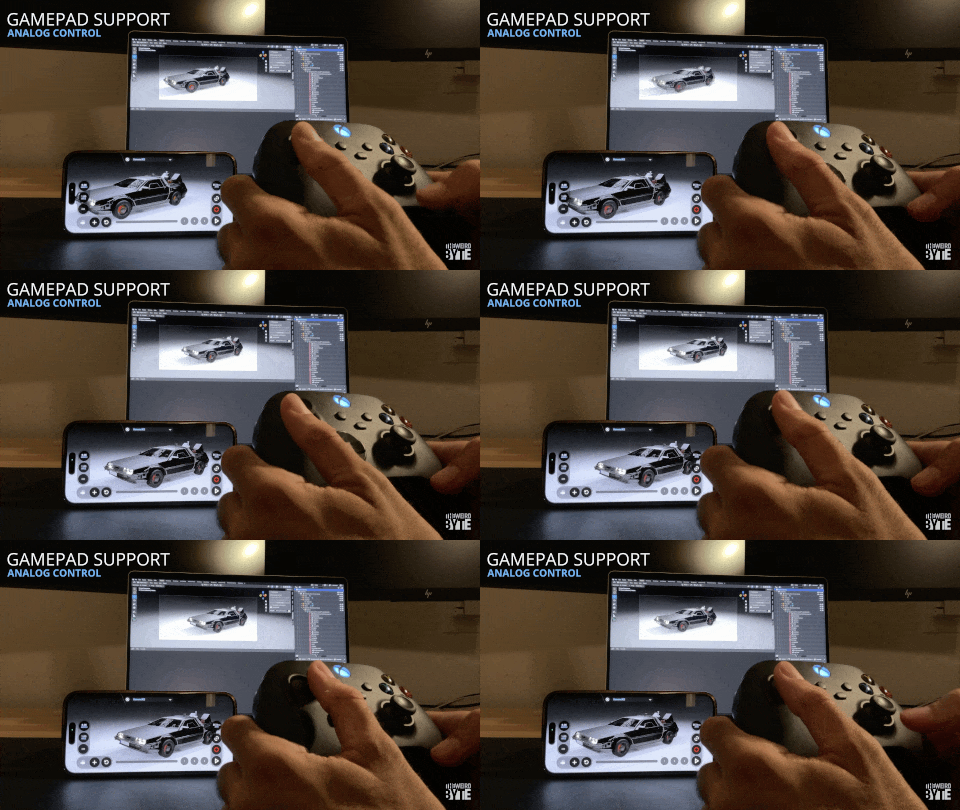
Follow these standard steps to pair your controller:
- Put your gamepad into pairing mode until the status light begins flashing rapidly. On Xbox controllers, hold the pairing button near the charging port; on PlayStation controllers, press and hold the PS and Share/Create buttons together.
- On iOS, go to Settings > Bluetooth, ensure Bluetooth is turned on, and select the controller under Other Devices to pair.
- On Android, go to Settings > Connected devices > Pair new device (or Settings > Bluetooth), then tap the controller name once it appears in the available devices list.