
Recording Your First Take
Once VirtuCamera connects to your 3D application, you can set up and record live camera motion directly into keyframes. This section walks through selecting your scene camera, configuring timeline and zoom boundaries, using device tracking, and performing your first capture.
Selecting the Active Camera
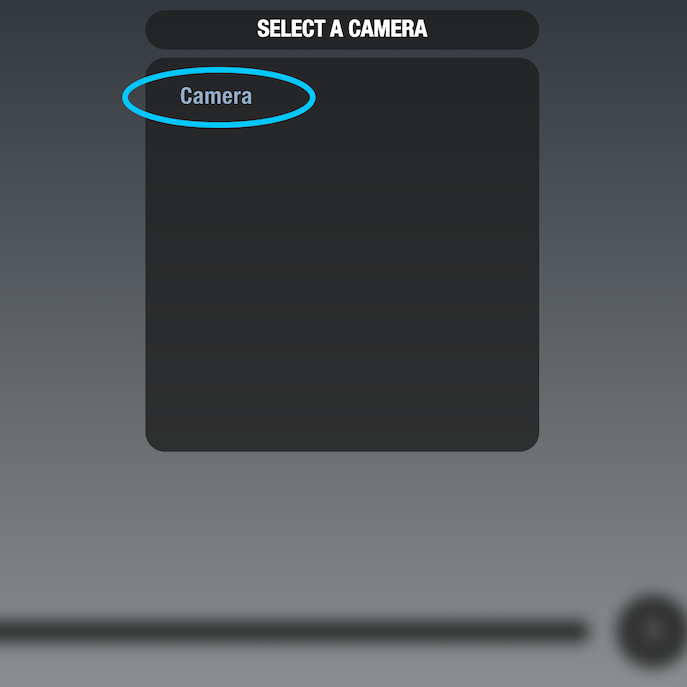
Right after connecting the app to your 3D software, choose which camera you want to control.
- Select the camera you want to work with from the list of available scene cameras.
- VirtuCamera updates your viewport to stream the perspective of the chosen camera.
Setting Scene Frame Range
Before capturing camera motion, establish the timeline boundaries for your scene in the app.
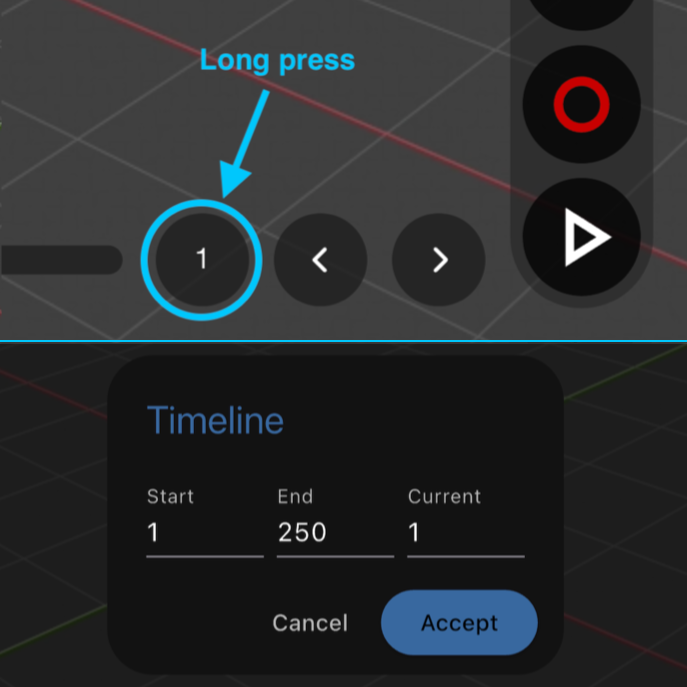
- Perform a long press over the current frame circle to open the timeline setup dialog.
- Enter the start, end, and current values to define your active frame range.
- VirtuCamera uses this exact range for the duration of the recorded take.
Linking Camera Movement
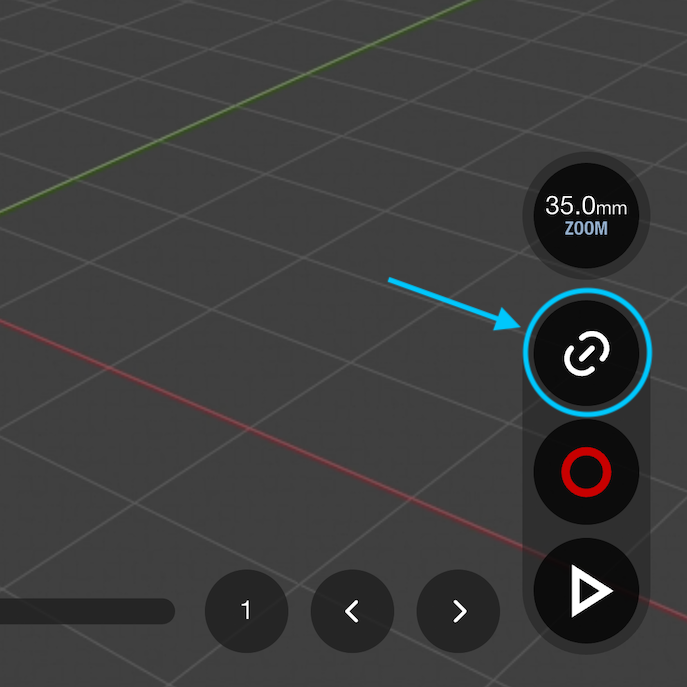
Connecting tracking sends your physical device coordinates directly to the virtual camera in your 3D software.
- Tap the link button to make the 3D camera follow device motion.
- Move the device gently across nearby surfaces if a calibration dialog appears, allowing the AR system to detect enough environmental features to establish stable tracking.
- Tap unlink whenever you need to reposition your device without moving the 3D camera.
- Tap link again once repositioned to resume live tracking.
Recording the Take
When your framing is set and tracking is active, you can capture your performance into keyframes.
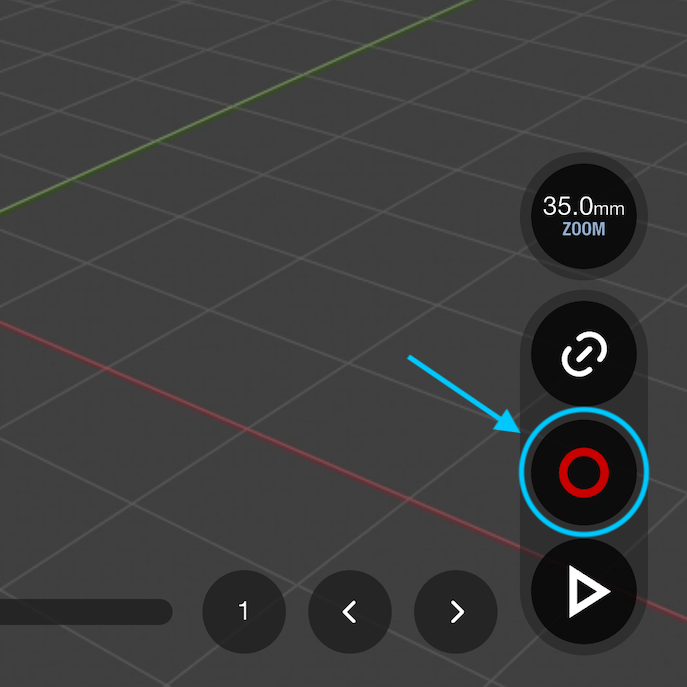
- Tap the record button to trigger the capture sequence.
- Prepare your physical camera move during the brief on-screen countdown.
- Move the device as the app records motion from the current frame to the designated end frame.
- Tap the record button a second time to stop recording early if you finish the move before reaching the end frame.