

How to install VirtuCamera plug-in in SideFX® Houdini® software
VirtuCameraHoudini is provided as a Python Houdini® pypanel. Please follow these simple steps:
1. Unzip the archive, you can download it from the Home page.
2. Copy the contents of the archive: three folders named packages, python_panels, and virtucamera_houdini.
3. Locate the user Houdini folder on the following paths, depending on your operating system:
Windows: C:/Users/<username>/Documents/houdiniX.X/
MacOS: /Users/<username>/Library/Preferences/houdini/X.X/
Linux: /home/<username>/houdiniX.X/
Note for MacOS users: If you can’t find the Library folder, it’s probably hidden. You can use Cmd+Shift+. to show hidden files.
3. Paste the folder virtucamera_houdini on the previously mentioned path.
4. Paste the contents of the folder packages in the subfolder of the same name on the previously mentioned path.
5. Paste the contents of the folder python_panels in the subfolder of the same name on the previously mentioned path.
6. Open Houdini, in the parameters window, press the plus button to open a new tab, then press New Pane Tab Type and then press Virtucamera:
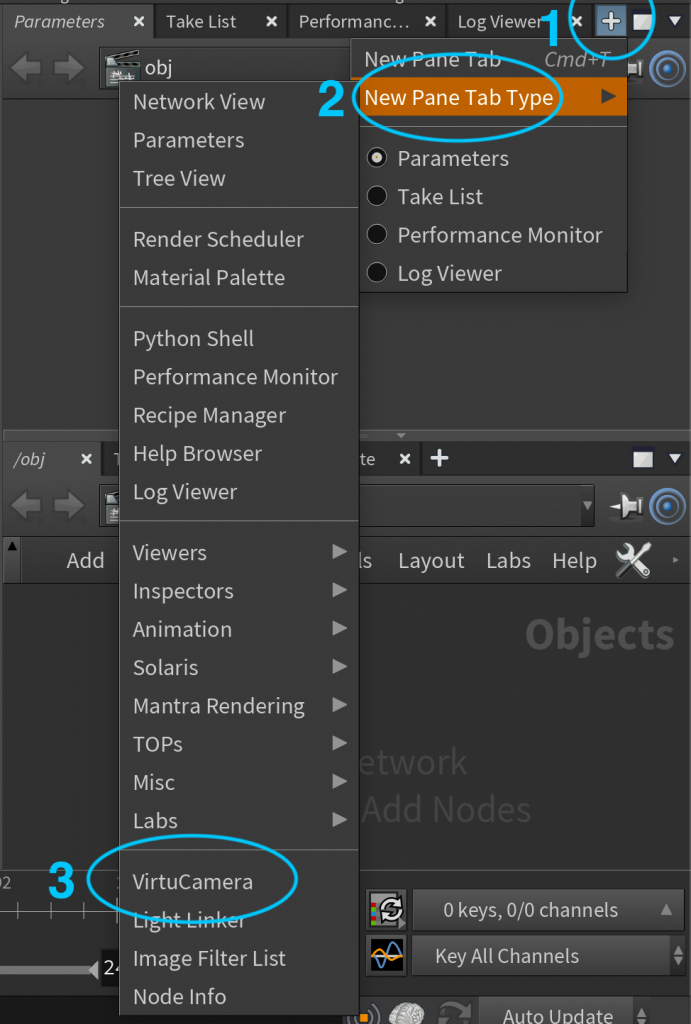
Done! you should have a new pane with VirtuCamera ready to be used.
How to start using VirtuCamera
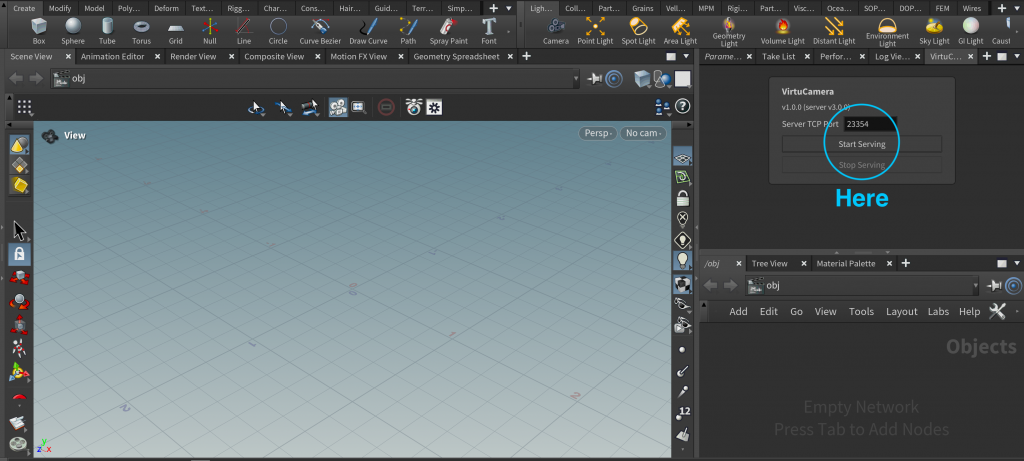
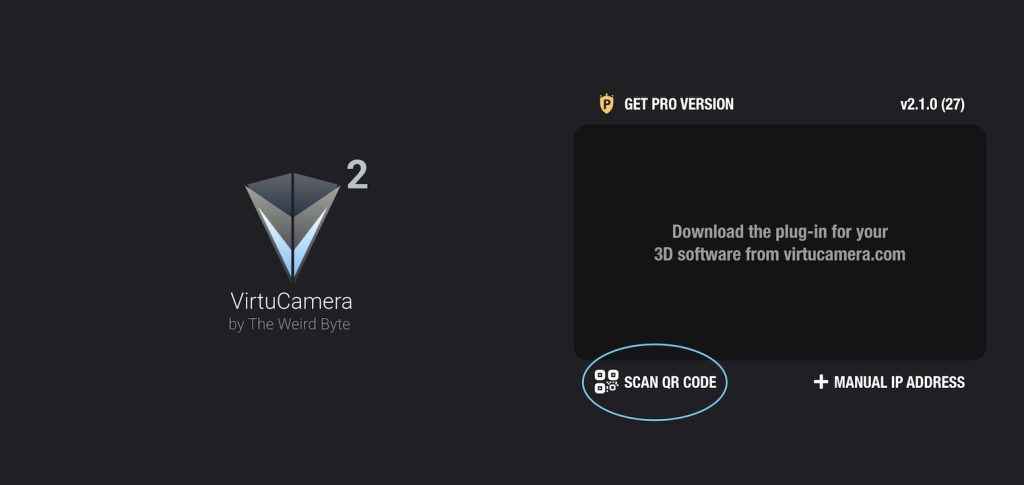
After clicking on “Start Serving”, if your computer doesn’t show up in the app, connect using the “Scan QR Code” button from the App and scan the QR-Code shown in the plug-in.
Make sure that your device is connected to the same network as your desktop computer.
SideFX, Houdini and the Houdini logo are registered trademarks or trademarks of Side Effects Software Inc., and/or its subsidiaries and/or affiliates in the USA and/or other countries.
Privacy Policy · Terms And Conditions · Cookie Declaration