
General Configuration Options
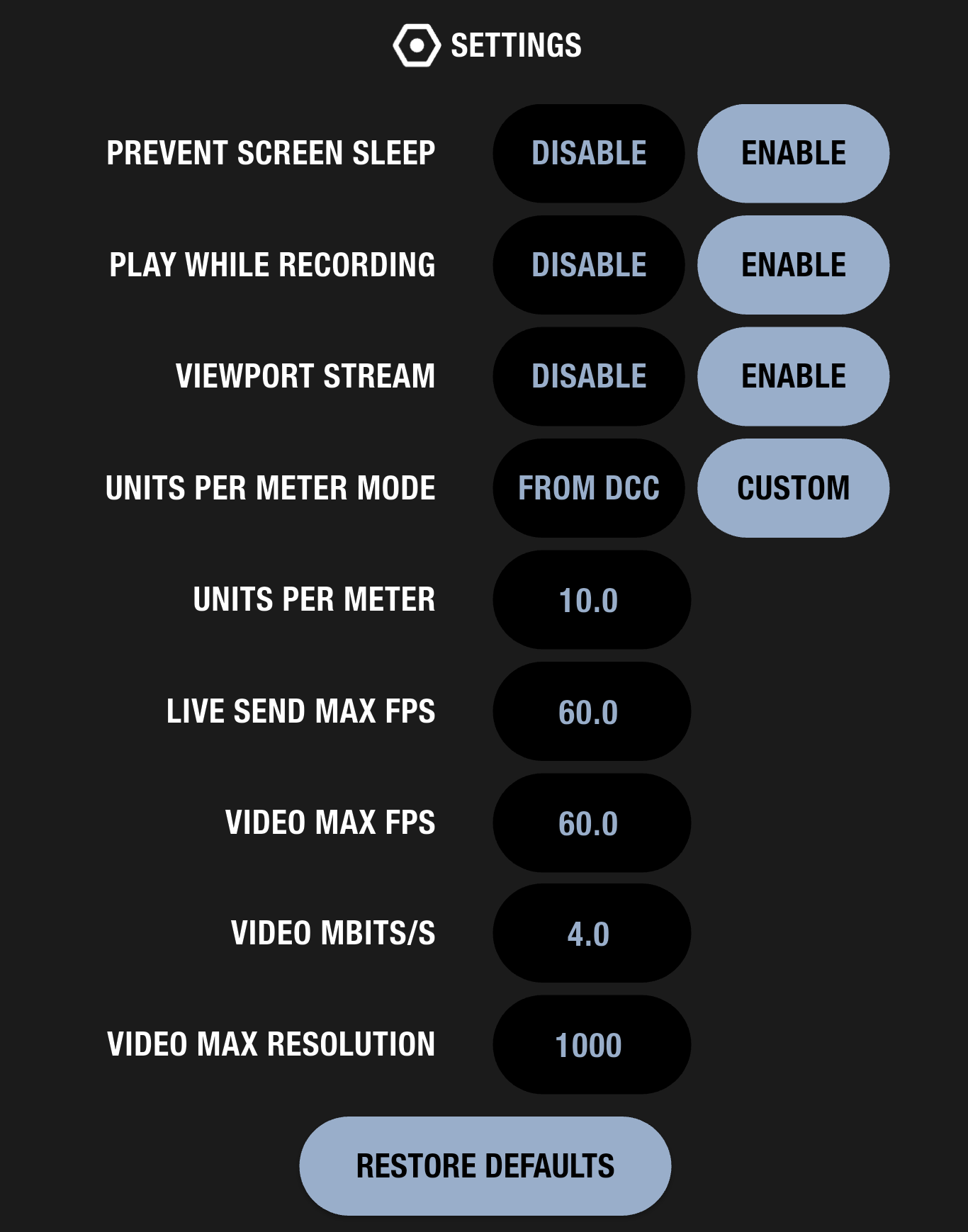
The Settings screen lets you adjust how VirtuCamera behaves during a session, from screen and playback behavior to scene scale and the quality of the viewport stream. This section explains each option so you can tune the app for your device, your network, and your 3D scene.
To open it, tap the settings icon in the app.
Prevent Screen Sleep
Keeps your device’s screen on while VirtuCamera is open, so the display doesn’t dim or lock in the middle of a session.
- Set it to Enable to keep the screen awake during long sessions or while you set up a shot.
- Set it to Disable to let the device follow its normal auto-lock settings and save battery.
- Leave it enabled during capture sessions. If the screen locks, it can interrupt tracking and your connection to the 3D software.
Play While Recording
Controls whether the scene timeline plays back in your 3D software while you record a take.
- Set it to Enable to see the rest of your scene animate as you record. This lets you follow characters or action and react to them with your camera move.
- Set it to Disable to record camera motion without playing back the scene animation. This can help with heavy scenes where playback slows down the session.
Viewport Stream
Turns the live video stream of your 3D software’s viewport on the device on or off.
- Set it to Enable to see the view from your scene camera on the device screen as you move.
- Set it to Disable to stop the video stream. This reduces network and processor load, which can help on slower networks or with very heavy scenes. You will need to watch the viewport on your computer instead.
Units Per Meter Mode and Units Per Meter
These two options set how many 3D software units equal one real-world meter, so your physical movement turns into the right amount of camera movement in the scene.
- From DCC calculates the value automatically from your 3D software’s scene settings. This is the default.
- Custom lets you type your own value in the Units per meter field.
- The Units per meter field only takes effect when the mode is set to Custom.
- For a full walkthrough, including the scale slider for quick adjustments, see Setting up scene scale.
Live Send Max FPS
Sets the maximum number of times per second the app sends camera tracking data to your 3D software.
- Higher values give smoother, more responsive live camera motion.
- Lower values reduce network traffic and load on your computer. This can help if the viewport lags or the connection is unstable.
Video Max FPS
Sets the maximum frame rate of the viewport stream shown on your device.
- Higher values make the streamed image look smoother on the device.
- Lower values reduce the load on your computer and network, at the cost of a choppier preview.
- This setting only affects the preview on the device. It does not change the recorded camera animation.
Video Mbits/s
Sets the bitrate of the viewport stream, measured in megabits per second, which controls the image quality of the preview.
- Increase it for a sharper image with fewer compression artifacts, if your network can handle it.
- Decrease it on slow or crowded Wi-Fi networks to keep the stream responsive. For the most stable connection, see Configuring tethering (wired network).
Video Max Resolution
Sets the maximum resolution, in pixels, of the viewport stream sent to your device.
- Higher values give a more detailed preview but need more bandwidth and processing.
- Lower values improve stream performance on slower networks or computers.
Restore Defaults
Resets all settings on this screen to their original values.
- Tap Restore Defaults if the app is behaving unexpectedly after you changed settings, or if you want to start over from the recommended configuration.