
Creating Custom Sliders (control custom DCC attributes)
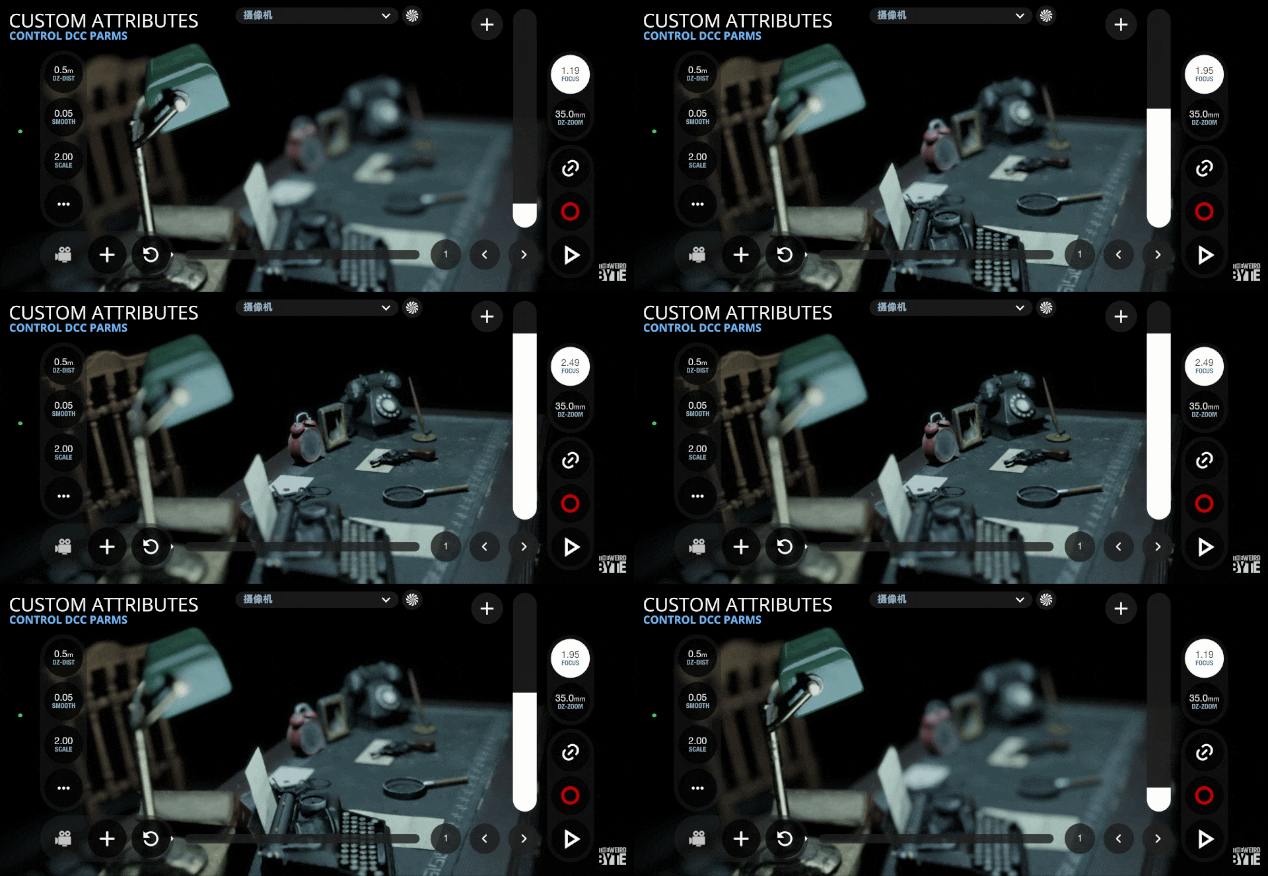
Custom sliders allow you to control arbitrary DCC attributes directly from the app interface, such as focus distance, sensor shift, or custom rig parameters.
Each software has a different way to set attributes or properties, please choose your DCC below:
Add a custom property in Blender
To expose a property to VirtuCamera, first assign a custom property to your camera’s data block:
- Select your camera in Blender and navigate to the Camera Data properties tab.
- Scroll to the Custom Properties panel and add a new property, naming it as you prefer (for example,
focus). - Edit the custom property Min and Max values to the range you need to control.
- Right-click on the newly created custom property and select Copy as New Driver.
- Locate the target parameter you wish to drive—such as the camera’s Focus Distance under the Depth of Field panel—right-click it, and select Paste Driver.
The custom property is now linked to drive that attribute.
Custom attribute in Maya
To expose an attribute to VirtuCamera, first take note of its name, it has to be an existing attribute in the camera Shape. You can change it’s value and check on the Maya script editor to see the attribute name.
Custom parameter in Houdini
To expose a parameter to VirtuCamera, first take note of its name, it has to be an existing parameter in the camera node. You can place the mouse over the parameter label to see the name.
Custom parameter in Cinema4D
This option is still not working in Cinema4D, it will be available soon through a plugin update.
Add a custom attribute in 3dsMax
To expose an attribute to VirtuCamera, create a custom parameter on your camera and link it to the target setting:
- Select your camera in 3ds Max.
- Go to the top menu and select Animation > Parameter Editor.
- Under the Attribute rollout, enter a name for your attribute (for example, focus), set the parameter type to Float, choose your preferred UI type (such as Slider or Spinner)
- Set the range (“from” and “to” values) to the range you need to control and click Add.
- Right-click the camera in the viewport and choose Wire Parameters (or open Animation > Wire Parameters > Parameter Wire Dialog).
- Navigate through the parameter tree to locate your new attribute under Custom Attributes.
- Connect your custom attribute to the target parameter you want to drive—such as the camera target or focus distance—set the direction arrow toward the target parameter, and click Connect.
The custom parameter is now wired to drive that camera setting.
Custom control in Nuke
To expose a control to VirtuCamera, first take note of its name, it has to be an existing knob in the camera node. You can place the mouse over the knob value to see the name.
Connect the property/attribute/parameter/control with the app
- Open the settings menu inside the VirtuCamera app.
- Locate the custom slider configuration section, which offers 4 customizable slots.
- Enter the exact name of the custom property created in your DCC (e.g.,
focus) into one of the available slots.
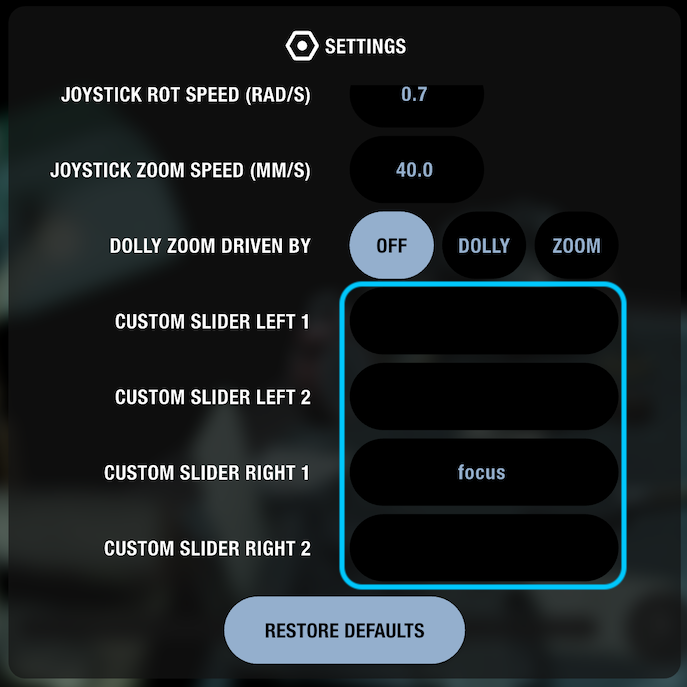
The corresponding custom slider will appear in your interface, mapped directly to control your scene parameter in real time.
Known issue: right now it’s not possible to input special characters like underscore “_”, a fix is coming soon!
Edit slider range
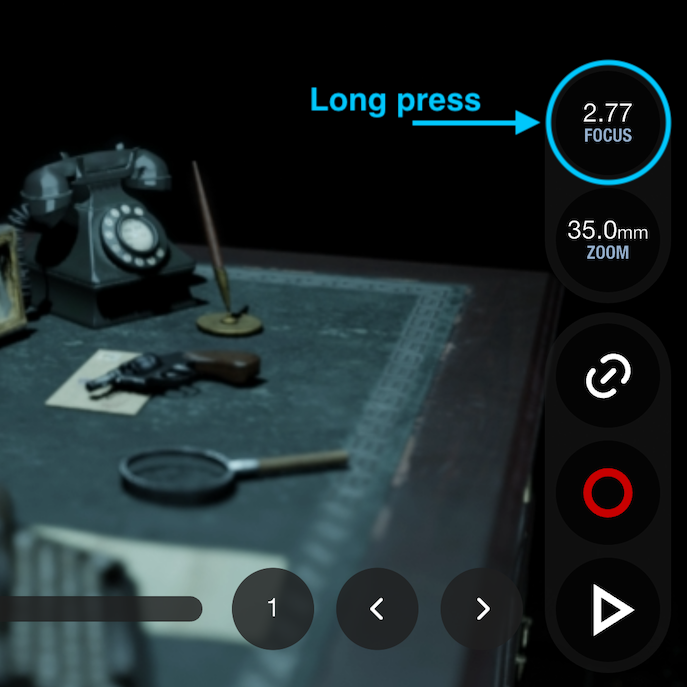
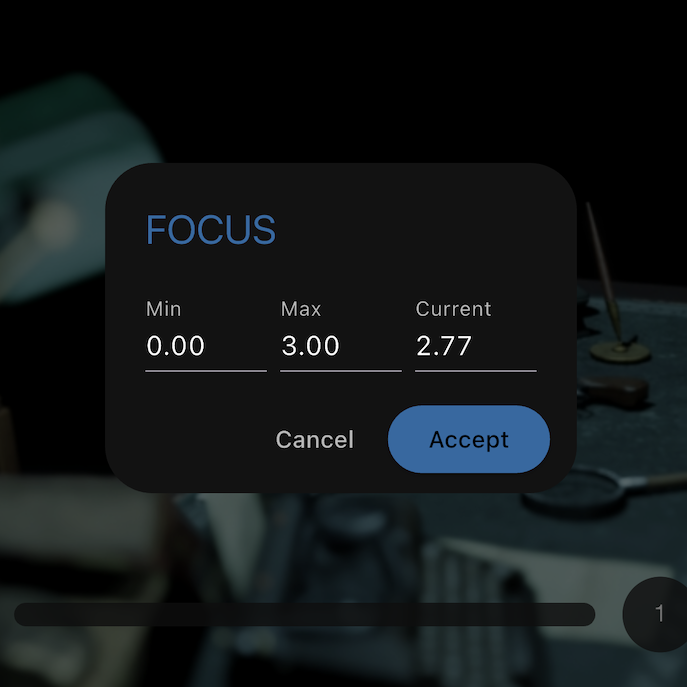
The default range of custom sliders goes from 0 to 1, to edit this range you can long press on the circle and change the min and max values: